
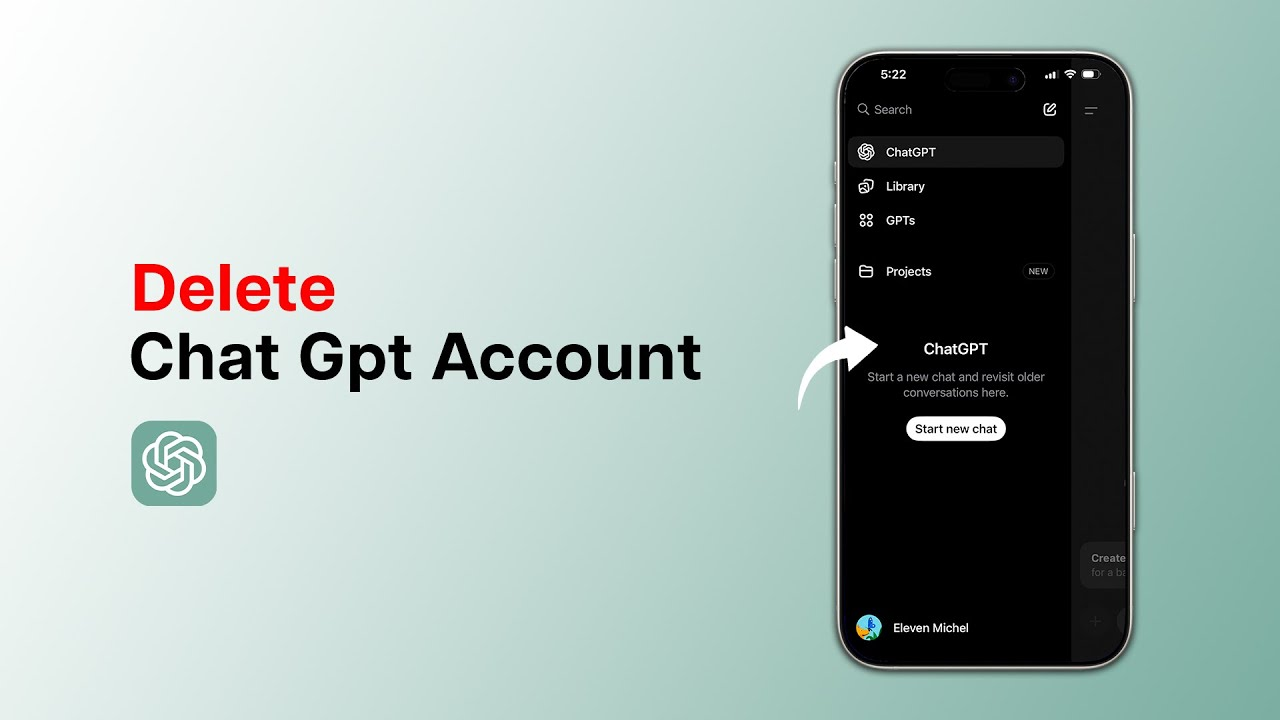
Introduction
ChatGPT has become useful for writing, learning, research, and everyday tasks. However, you may eventually decide to stop using your account. You might want better privacy, fewer online accounts, or simply a fresh start. Whatever your reason, knowing how to delete chatgpt account can help you complete the process correctly.
Deleting an account is different from deleting individual conversations. It is also different from uninstalling the ChatGPT app. Account deletion is a permanent action, so you should understand what happens before confirming it. You should also check your subscription and save anything important first.
This guide explains the main ways to delete your ChatGPT account. It covers computers, iPhone, Android, account access problems, subscriptions, and common alternatives.
What Happens When You Delete Your ChatGPT Account?
When you delete your ChatGPT account, you lose access to that account. Your conversations will no longer be available through the deleted account. OpenAI says account data is generally deleted within 30 days, although certain information may be retained longer for legal, security, or other permitted reasons.
This is why you should think carefully before learning how to delete chatgpt account and confirming the final step. Account deletion cannot be reversed. You should download or copy anything important before starting.
Deleting an account is also different from deleting one conversation. If you only want to remove certain chats, you can delete those conversations instead. You do not need to close your entire account for that purpose.
Quick Account Deletion Details
| Detail | Information |
|---|---|
| Main action | Permanently delete your account |
| Website | ChatGPT account settings |
| Mobile | ChatGPT app settings |
| Alternative | OpenAI Privacy Portal |
| Data deletion | Generally within 30 days |
| Recovery | Deleted accounts cannot be restored |
| Subscription | Check billing platform separately |
| Chat deletion | Can be done without deleting account |
Always check the latest OpenAI instructions because account settings can change over time.
How to Delete ChatGPT Account on a Computer
The easiest way to delete your account is usually through ChatGPT on the web. First, sign in to the account you want to remove. Make sure you are using the correct account if you have multiple accounts.
To understand how to delete chatgpt account on a computer, follow these general steps:
- Open ChatGPT in your web browser.
- Sign in to your account.
- Open your account menu.
- Select Settings.
- Open the Account section.
- Look for the account deletion option.
- Select Delete account.
- Complete any required verification.
- Follow the confirmation instructions.
- Confirm permanent account deletion.
Read the final warning carefully before confirming. Once the account is deleted, you cannot restore the same account. If your settings look different, check OpenAI’s current help documentation for the latest interface.
How to Delete ChatGPT Account on iPhone
You can also delete your ChatGPT account using the official iPhone app. Open the app and sign in to the account you want to remove.
Open your account menu and go to the available settings. Look for Data Controls or the account deletion option. Select the deletion option and follow the instructions shown on your screen.
Before following how to delete chatgpt account instructions on your iPhone, check whether you have an active subscription. If you subscribed through Apple, account deletion may not replace the normal subscription cancellation process.
You can check your iPhone subscriptions by opening Settings, selecting your Apple Account, and then choosing Subscriptions. Find ChatGPT and check its status. Cancel the subscription separately if required.
How to Delete ChatGPT Account on Android
Android users can also manage account deletion through the ChatGPT app. Open the application and sign in to the account you want to remove.
Go to your account settings and look for the relevant Data Controls or account deletion section. Select the deletion option and follow the confirmation instructions.
If you purchased a ChatGPT subscription through Google Play, check your Google Play subscriptions separately. Deleting an account and canceling a store subscription are not always the same process.
This simple check can help prevent unwanted future billing. It is especially important before completing how to delete chatgpt account steps permanently.
How to Delete ChatGPT Account Without Logging In
Sometimes users cannot access their ChatGPT account. You might have forgotten your password or lost access to your usual device.
In this situation, you can use the OpenAI Privacy Portal to submit an account deletion request. You may need to verify that you own the account.
Open the official OpenAI Privacy Portal and follow the privacy request instructions. Select the relevant account deletion option and provide the requested information.
If you cannot access the email address or phone number connected to the account, additional support may be required. Never provide your password or verification codes to someone claiming they can delete your account.
What Should You Do Before Account Deletion?
Before searching for how to delete chatgpt account, take a few simple precautions. First, save important information from your conversations. You may have useful notes, writing ideas, research, or other information that you want later.
You should also check your account subscription. Identify whether you purchased it directly through ChatGPT, Apple, or Google Play.
Next, review your privacy settings and saved information. If you only want to remove certain conversations, consider deleting those chats instead of your entire account.
These small checks can prevent unnecessary problems. Account deletion is permanent, so taking a few minutes to prepare is worthwhile.
Can You Delete Individual ChatGPT Chats?
Yes. You do not need to delete your complete account to remove individual conversations.
If your goal is simply to clean your chat history, open ChatGPT and locate the conversation you want to remove. Open the conversation menu and choose the delete option. Follow the confirmation instructions if displayed.
You can also consider archiving conversations when you want to hide them without deleting them permanently.
This is an important difference. Many people search for how to delete chatgpt account when they actually only want to remove old conversations.
How to Cancel ChatGPT Plus
You may not need to delete your account if your main goal is stopping payments. Instead, you can cancel your ChatGPT subscription and continue using the account.
If you subscribed through the ChatGPT website, open your account settings and locate your billing or subscription section. Follow the cancellation instructions.
If you subscribed through Apple or Google Play, manage the subscription through the relevant store.
Always check which platform handles your billing. This is particularly important before completing how to delete chatgpt account steps.
Can You Create a New Account Later?
A deleted account cannot simply be restored. However, OpenAI states that users may create a new account using the same email address after the applicable waiting period, provided the original account was fully deleted.
A new account will not bring back your old conversations. Therefore, save anything important before deleting your existing account.
If you are only taking a short break from ChatGPT, account deletion may not be necessary. You could keep your account and return whenever you need it.
Important Privacy Tips
Privacy management does not begin and end with account deletion. Before closing your account, review your ChatGPT settings and personal information.
Save important data before deletion. Review conversations that contain information you may need later. Check subscriptions and connected services as well.
You should also use only official OpenAI channels when handling account or privacy requests. Avoid websites or individuals promising instant account deletion in exchange for your login details.
Understanding how to delete chatgpt account is useful, but understanding the consequences is equally important.
Conclusion
Learning how to delete chatgpt account is fairly simple when you follow the correct process. You can generally start through ChatGPT settings on your computer or mobile device. If you cannot access your account, the OpenAI Privacy Portal provides another route.
Before confirming deletion, save important conversations and check your subscription. Remember that deleting your account is permanent. If you only want to remove specific chats or stop paying for a subscription, there may be easier alternatives.
Choose the option that matches your actual goal. Taking a few minutes to prepare can help you avoid losing information you may need later.
Frequently Asked Questions
Q1: How to delete ChatGPT account permanently?
A: Open ChatGPT settings, find the account deletion option, complete verification, and confirm permanent deletion. You can also use the OpenAI Privacy Portal when appropriate.
Q2: Can I delete my ChatGPT account from my phone?
A: Yes. You can use the official ChatGPT app on supported iPhone and Android devices. Open your account settings and locate the deletion option.
Q3: Does deleting ChatGPT remove my conversations?
A: Your conversations will no longer be available through the deleted account. OpenAI generally processes account data deletion within 30 days, subject to certain exceptions.
Q4: Does deleting my account cancel ChatGPT Plus?
A: Directly billed subscriptions are handled differently from Apple or Google Play subscriptions. Check your billing platform and cancel through it when necessary.
Q5: Can I recover a deleted ChatGPT account?
A: No. A deleted account cannot be reactivated. You may create a new account later when eligible, but your previous conversations will not return.
Q6: How to delete ChatGPT account if I cannot sign in?
A: You can submit an account deletion request through the official OpenAI Privacy Portal. You may need to verify ownership of the account.